
Getting to know the console
What the overview shows, where everything is and how to begin.
Step 1
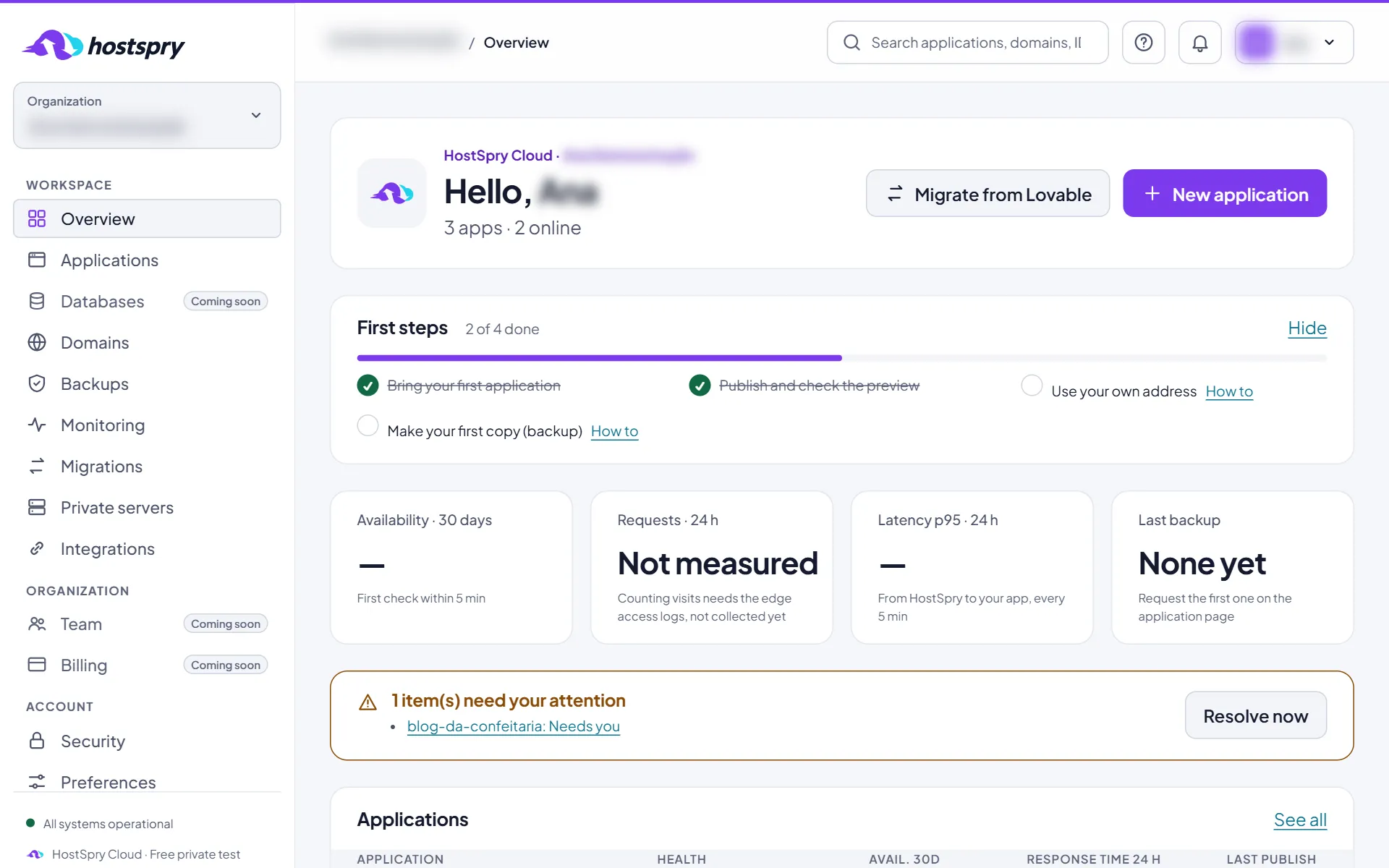
The overview
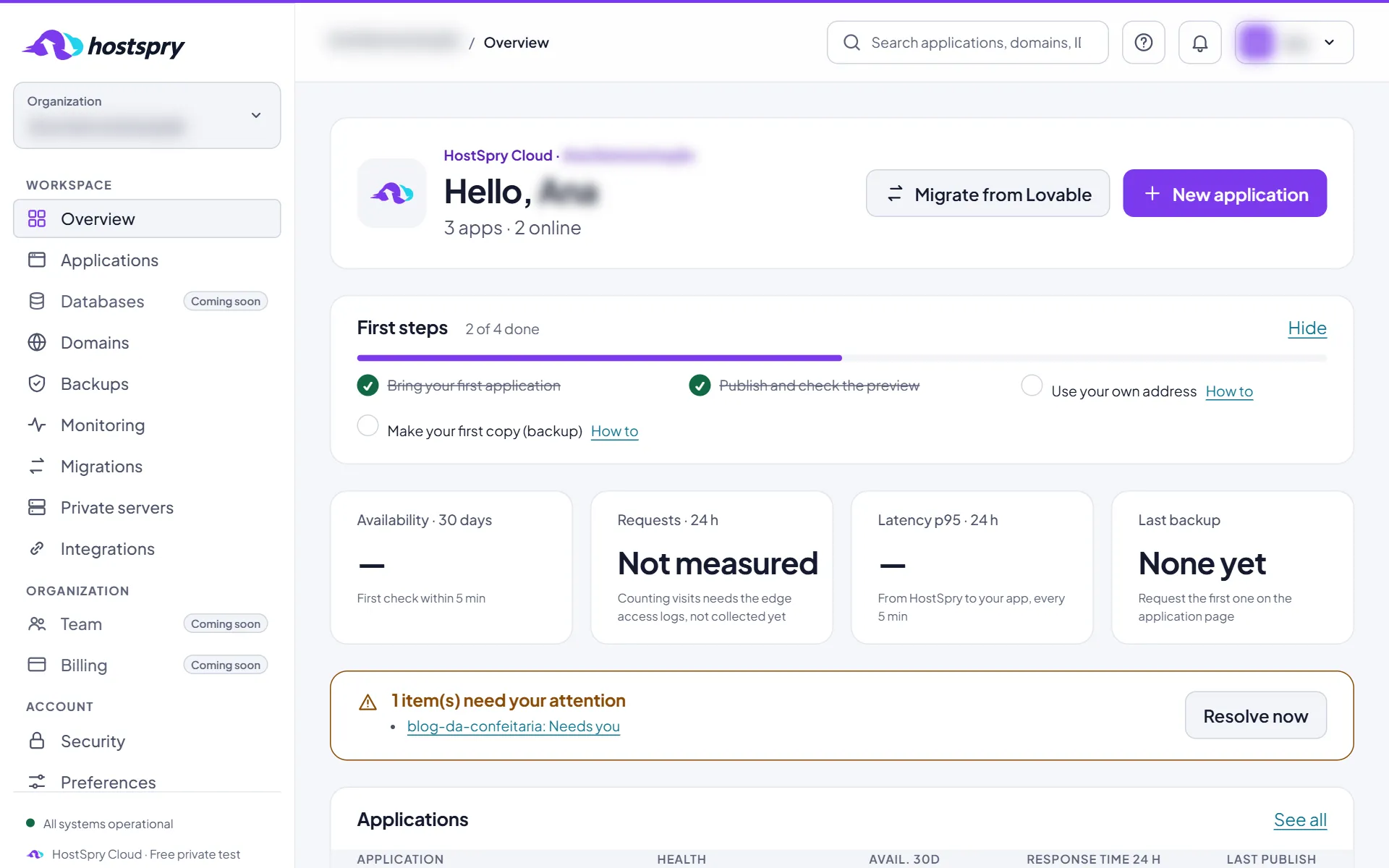
When you sign in you see the account summary: applications online, measured availability, response time and the last backup. Only measured numbers appear — anything not measured yet says so.
Step 2
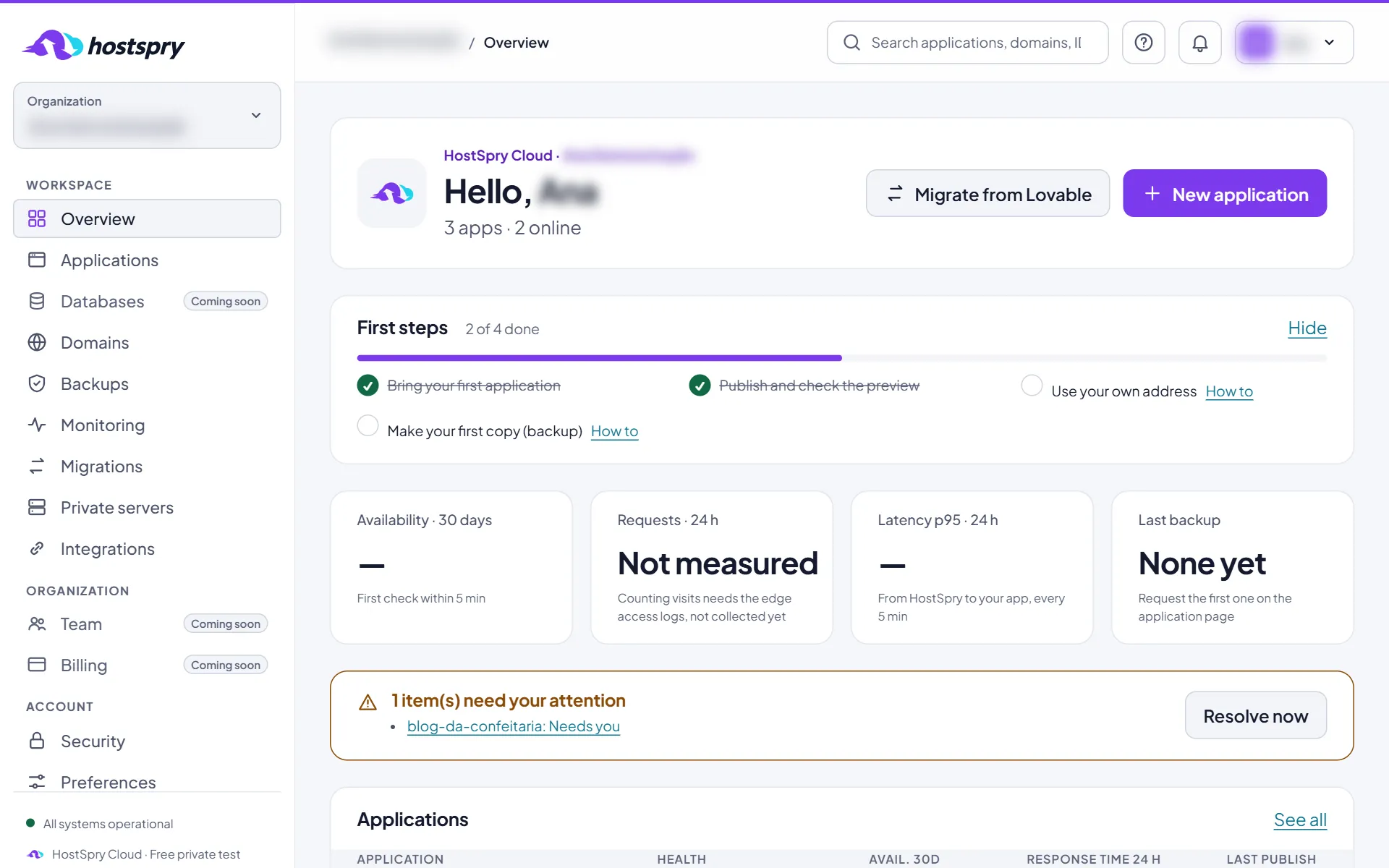
The menu
On the left are the areas of the console: applications, domains, backups, monitoring, migrations and integrations. Anything not available yet shows as “Coming soon”.
Step 3
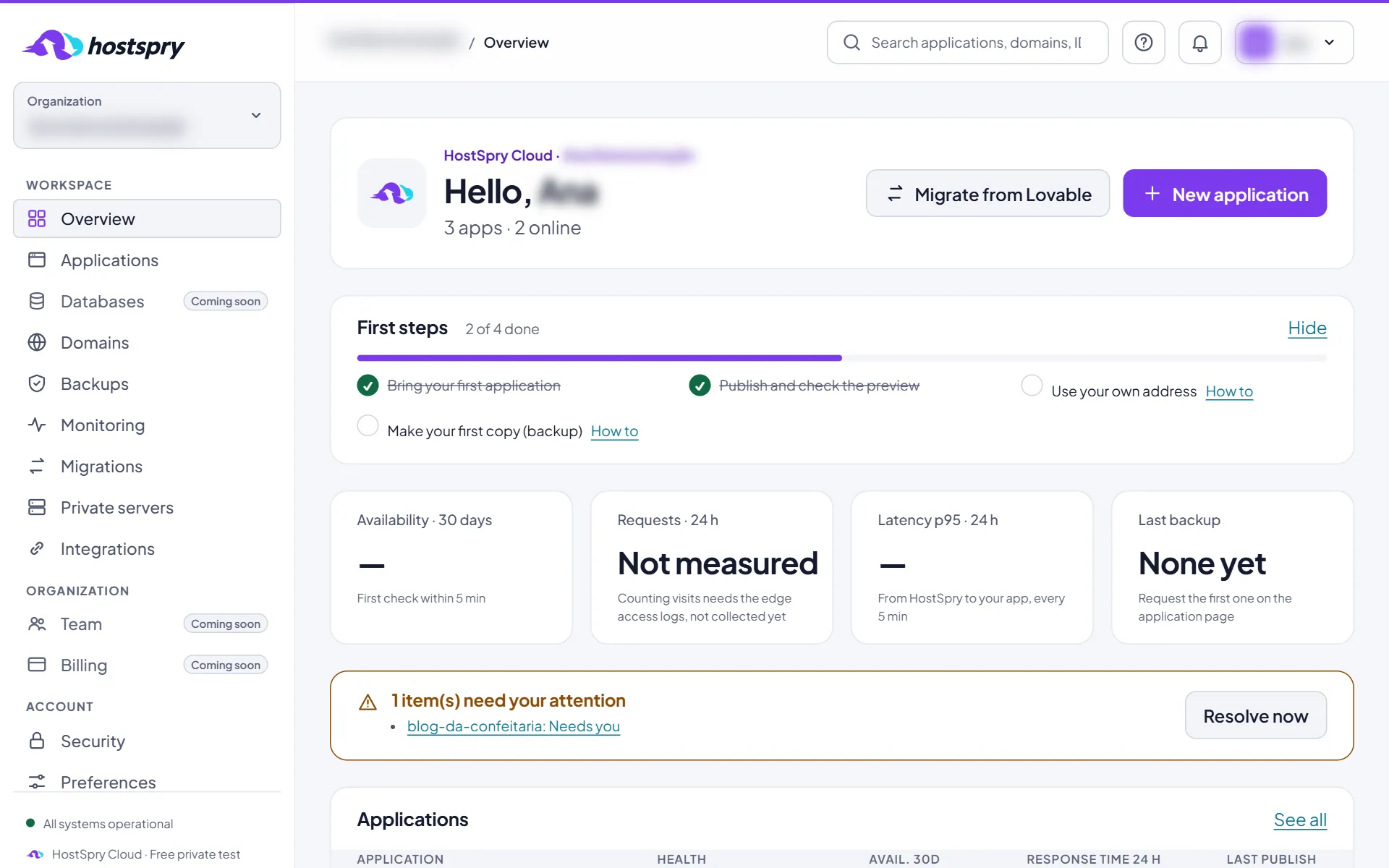
Where to start
To bring an app, use Migrate from Lovable for projects made on Lovable, or New application for an application in a GitHub repository.
Step 4
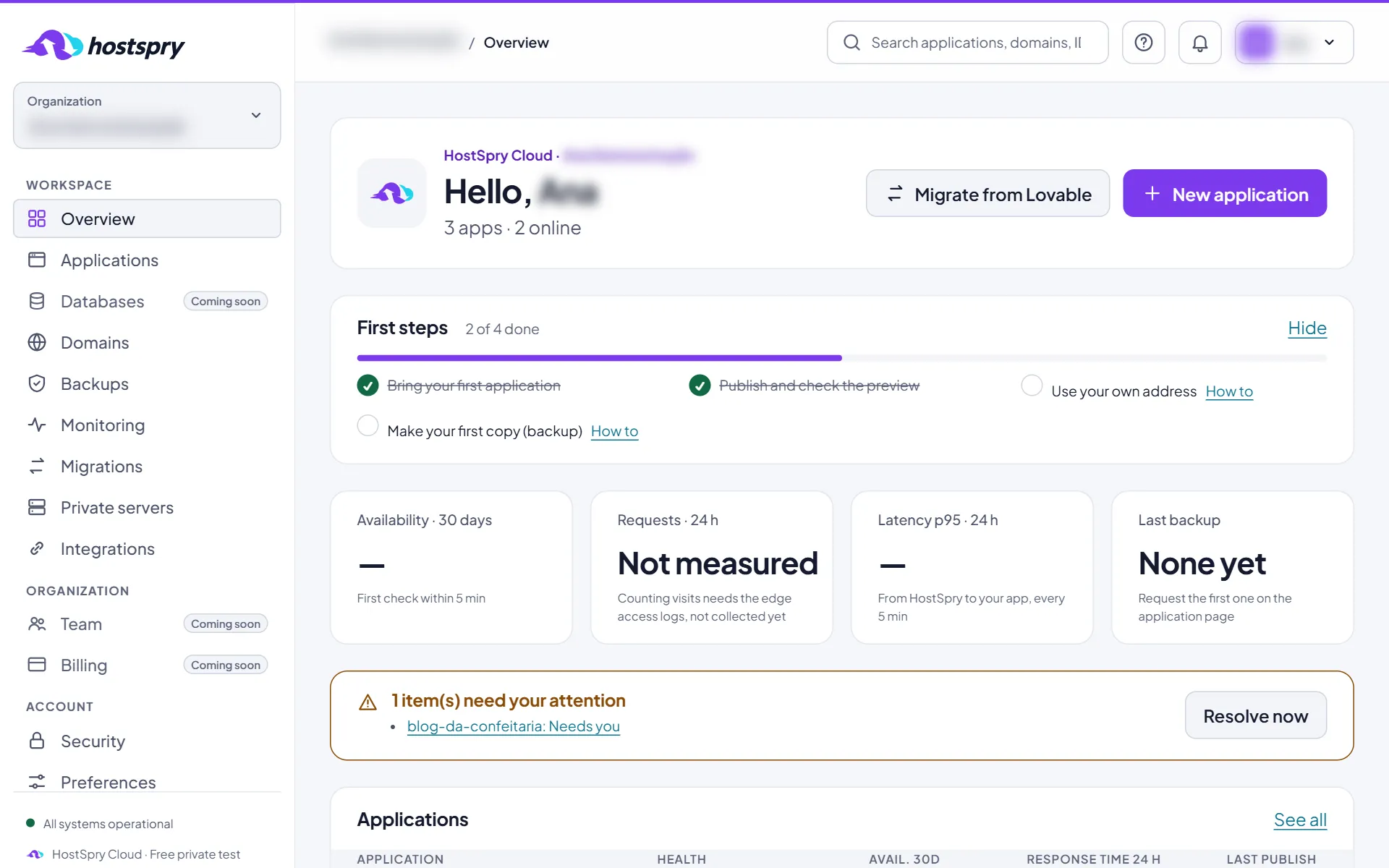
Search
The search at the top finds applications, domains and IDs. Type part of the name and press Enter.
Step 5
Help on every screen
The Help button at the top opens the guide for the screen you are on. This help center gathers them all.
Step 6
Your way
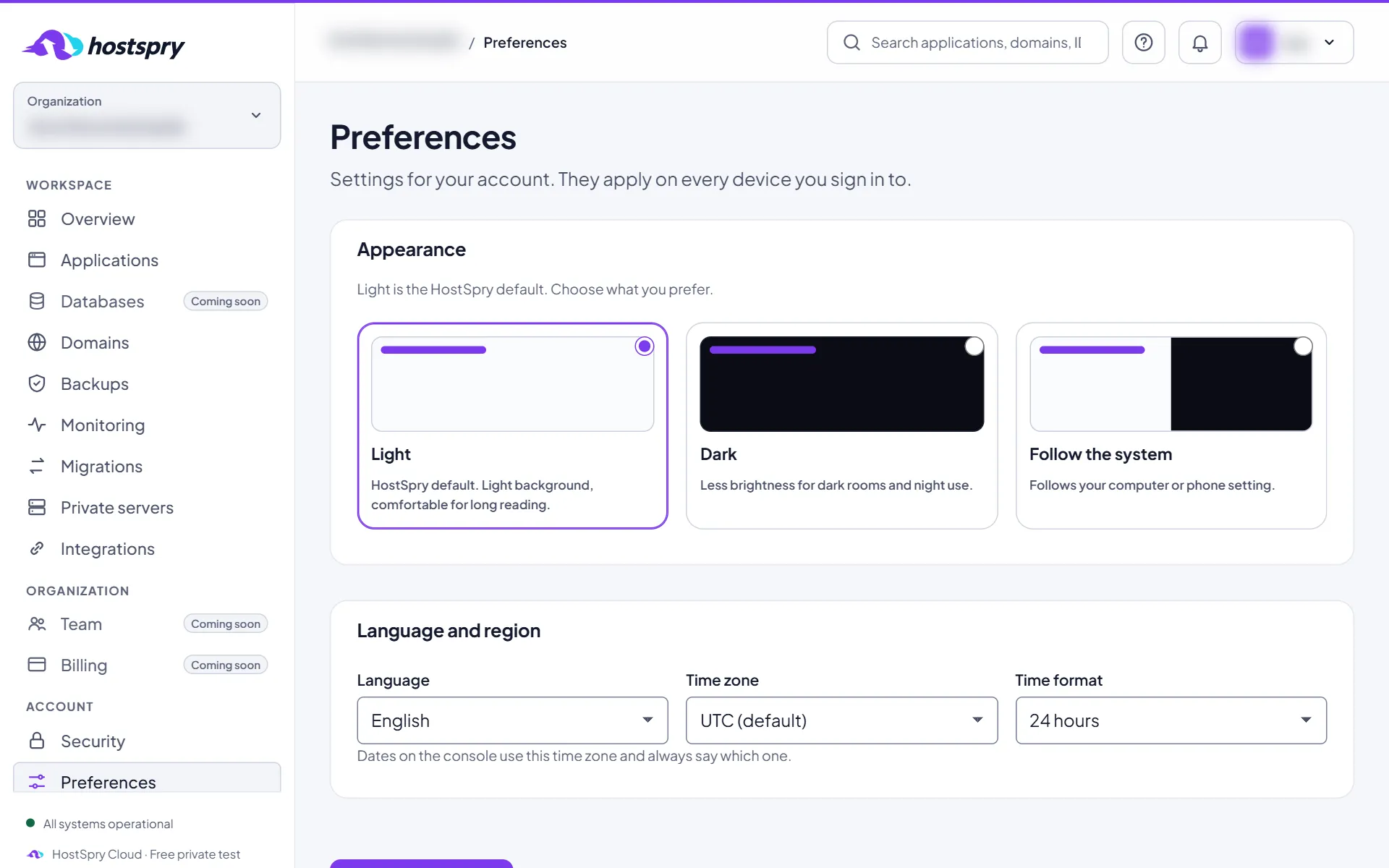
In Preferences you choose theme, language, time zone and time format. Click Save preferences: it applies on every device you sign in to.
The screens use a demo account; anything that would identify someone is blurred.
Next step
Want to try it with your own app? During the private beta, access is by request.